Every CS2 trade, whether it's with a friend, a stranger or a site's bot, runs through the same Steam feature: the trade offer. You pick items from both inventories, send the offer, and the other side accepts, declines or counters. Here is how each step works, what changed for CS2 items in 2025 and 2026, and what to check before you confirm anything.
What a Steam trade offer is
Valve describes a trade offer as a "prepackaged trade". Unlike regular Steam trading, neither of you has to be online at the same time, and it works from a web browser as well as the Steam client.
You can send offers to friends whose inventory you can see, or to anyone who has given you their trade URL; our guide to your trade URL explains that link. An offer can hold any tradable items, with three limits worth knowing:
- No money. Steam Wallet funds can't go into an offer, and Valve warns that an offer claiming to include them may be a scam.
- No mixing games. CS2 items are trade protected, and Valve doesn't allow them in the same trade as items from games without that protection.
- No more than 1,000 items. Since April 22, 2026, an offer containing CS2 items is capped at 1,000 items.
How to send a trade offer on Steam
Valve's steps, from the Steam client or website:
- Hover over your name at the top and open Inventory.
- Click Trade Offers, then New Trade Offer, and choose a friend. With a trade URL, open the link instead.
- Drag the items you want to give and receive into the two trade boxes.
- Tick the box to confirm the trade contents and click Make Offer.
- Confirm the offer in the Steam Mobile app, or by email if you don't use the Mobile Authenticator.
The items stay in your inventory until the offer is accepted, so you can send several offers with the same items. When one is accepted, the others become inactive. An offer also goes inactive if one of its items is traded away or sold on the Market. Offers you don't act on expire after two weeks. If sending fails with an error and a number in brackets, our guide to Steam trade offer errors explains what the common codes mean.
Counter-offers and cancelling
To counter, open Trade Offers, then Incoming Offers, choose Respond to Offer and Change Offer. Add or remove items on either side, confirm the contents and send it. A counter goes back as a brand new offer, so the other person has to review it again.
To withdraw an offer you sent, find it under Sent Offers and click Cancel Trade Offer. You can decline incoming offers the same way, and ignoring them costs nothing.
Confirming in the Steam Mobile app
Every offer that sends items out of your account has to be confirmed, and Valve says there's no longer a way to opt out. With the Steam Guard Mobile Authenticator you approve trades in the Steam Mobile app, which Valve lists as "Trade and Market confirmations" so that items don't leave your account without your approval. Without the app, Steam emails you a confirmation link.
The phone step exists for a reason. When Valve introduced trade holds in 2015, it explained that it built its own authenticator instead of supporting generic ones because it needed "to show users the contents of the trade on a separate device and have them confirm it there." A hijacked PC can show you a fake offer; the app shows what you're really sending. Valve's trade offer FAQ puts it plainly: "All trades are final; use the confirmation step to review." CS2 trades can now be reversed for a week, as the next section explains, but only by undoing every recent protected trade at once, so treat the confirmation as your real last chance.
Holds and trade protection
What happens after you confirm depends on the game. Under Steam's general rule, if an account hasn't had the Mobile Authenticator for the last seven days, items leaving it are held for up to 15 days before delivery. CS2 is the exception.
| Situation | What happens |
|---|---|
| CS2 items, with or without an authenticator | Delivered at once, then trade protected for 7 days |
| Items from other games, no authenticator for 7 days | Held for up to 15 days before delivery |
| CS2 items mixed with items from another game | Not allowed in one offer |
Since July 2025, a CS2 item you receive can be used straight away but can't be traded, sold, modified or moved into a Storage Unit for seven days. During that week, either side can reverse the trade from their Trade History, at the cost of a 30-day trading and Market cooldown for whoever starts the reversal. Our guides to trade protection and what happens when a trade is reversed cover the consequences.
What to check before you accept
Valve says all trade scams can be avoided, and its advice comes down to checking things the offer already shows you:
- The sender. The offer shows how long you've been friends, their Steam level, how old the account is and which groups they moderate. Scammers impersonate friends and well-known traders, so make sure it's really them.
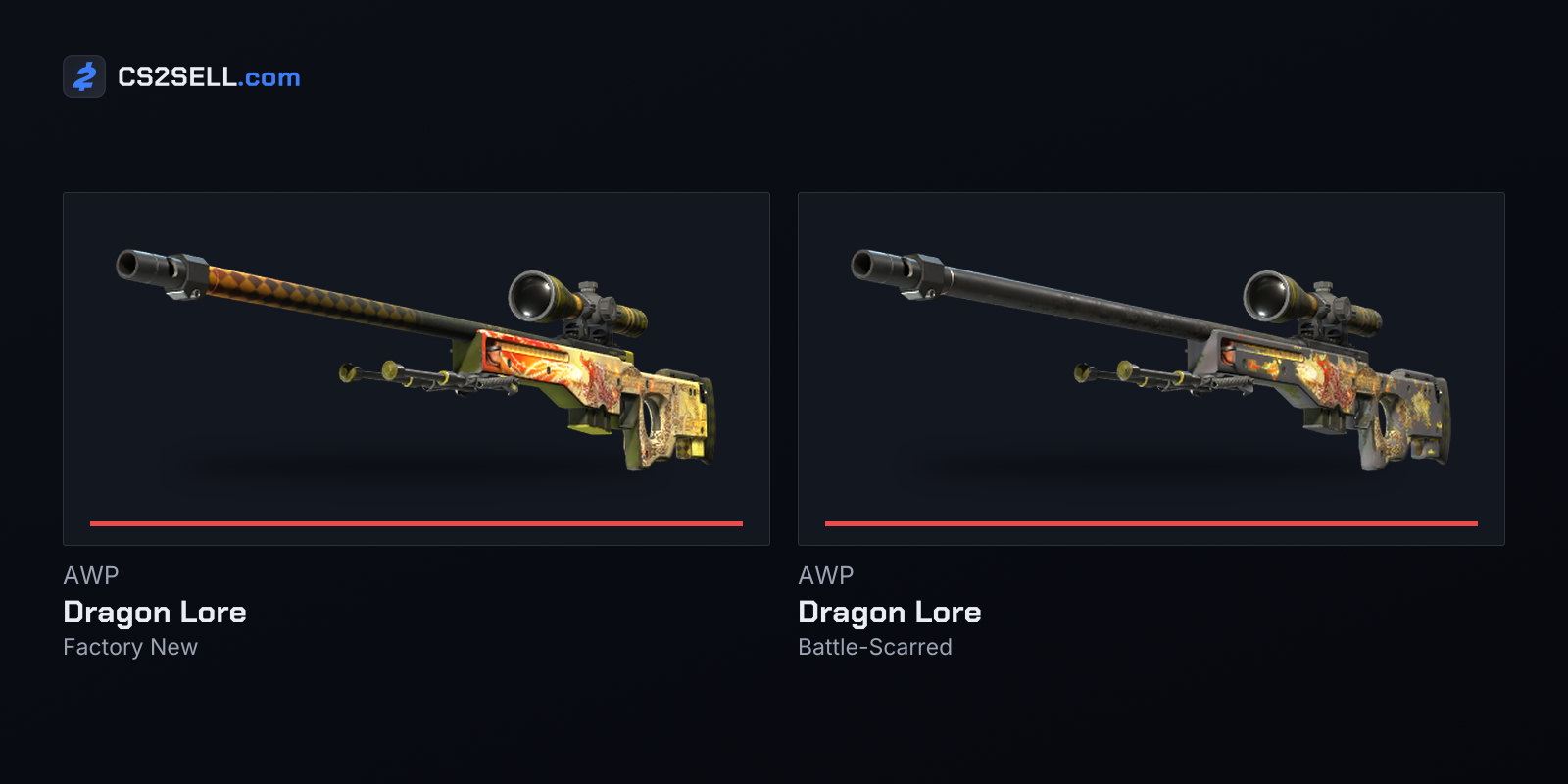
- Every item. Hover over each item on both sides and check its exact name, quality and wear. A lookalike or a worse-condition copy is the oldest swap there is.
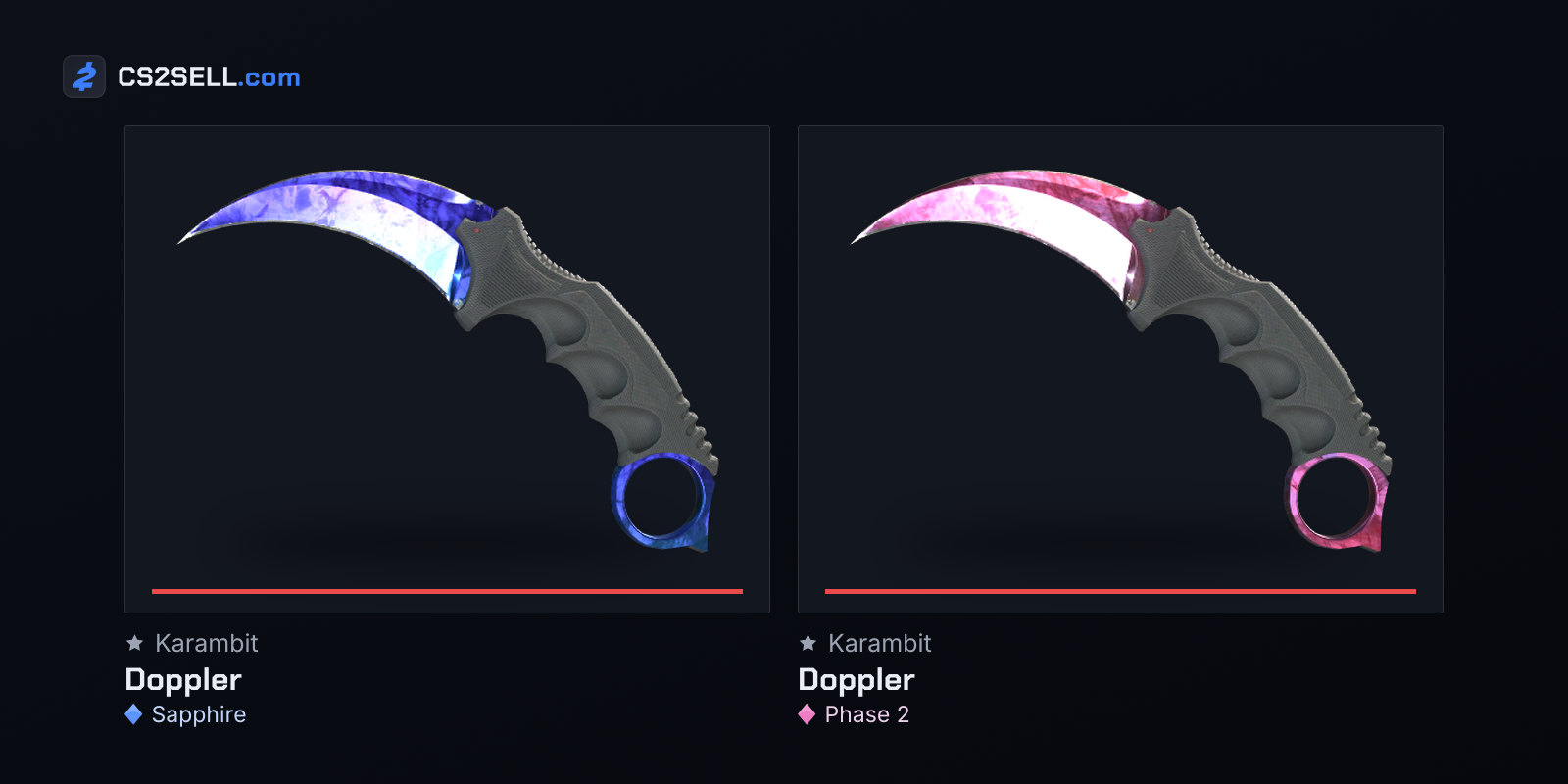
- Details the name doesn't show. Doppler phases, patterns and stickers aren't in an item's name, so inspect anything where they matter.
- What you get back. If you'd receive nothing, Steam shows a dialog warning that the trade counts as a gift. Decline unless that's what you intended.
- Promises outside the offer. Valve tells you never to trade for money, CD keys or anything else that can't go into the offer itself, to finish a deal in one trade rather than several, and to avoid middlemen.
- The confirmation. If what the app shows doesn't match the offer you built or agreed to, don't confirm it. Our article on the API key scam explains how attackers swap offers.
Remember the protection window too. An item you've just received is locked for a week, and the person who sent it can still reverse the trade during that time, so don't pay for skins outside Steam on the strength of a trade that's only a few days old.
Sources
- Steam Trade Offers — Steam Support
- Recommended Trading Practices — Steam Support
- Steam Trading — Steam Support
- Trade Protected Items — Steam Support
- Steam Trade and Market Holds — Steam Support
- The updated Steam Mobile App is now available — Steam News
- Security and Trading — Steam News
- Counter-Strike 2 Update, April 22, 2026 — Counter-Strike 2