Inspecting is how you see the exact copy of a skin you own or are about to buy, not just the generic picture on a listing. Two items with the same name can differ in wear, pattern, stickers and charm, and those differences can change the price a lot. Here is how to inspect skins in CS2 and what to look at once you do.
How to inspect skins in CS2
In a match. Press F, the default inspect key, to play your weapon's inspect animation. You can rebind it under Settings, Keyboard/Mouse, Weapon Keys, or with the console command bind <key> "+lookatweapon". This shows the skin under real map lighting, which is worth doing because CS2's lighting makes the same finish look different from map to map. Since September 2025 you can also open a teammate's loadout while spectating them and inspect their weapons.
From your inventory. Right-click an item and choose Inspect. The inspect screen lets you rotate the item freely, switch the background scene, and since September 2025, zoom with the mouse wheel and pan with Shift and drag. Since October 2024 the first-person inspect there matches your in-game viewmodel settings and field of view.
From an inspect link. Steam Community Market listings and Steam inventory pages have an "Inspect in Game" button. It opens CS2 and loads that specific item, with its own float, pattern and stickers, even though you do not own it. Community inspect servers that spawn skins from a gen code are a different thing; our guide to CS2 inspect servers explains how they work.
Reading float and pattern seed in the inspect screen
At the bottom of the inspect screen is an information icon. Hovering it shows the item's details, including:
- Wear rating: the float, a number between 0 and 1 that is fixed when the item is created. Lower means less wear.
- Wear category: the condition tier that float falls into. Valve added it to the tooltip in April 2024.
- Pattern template: the paint seed, a number that decides where the finish's artwork lands on the weapon.
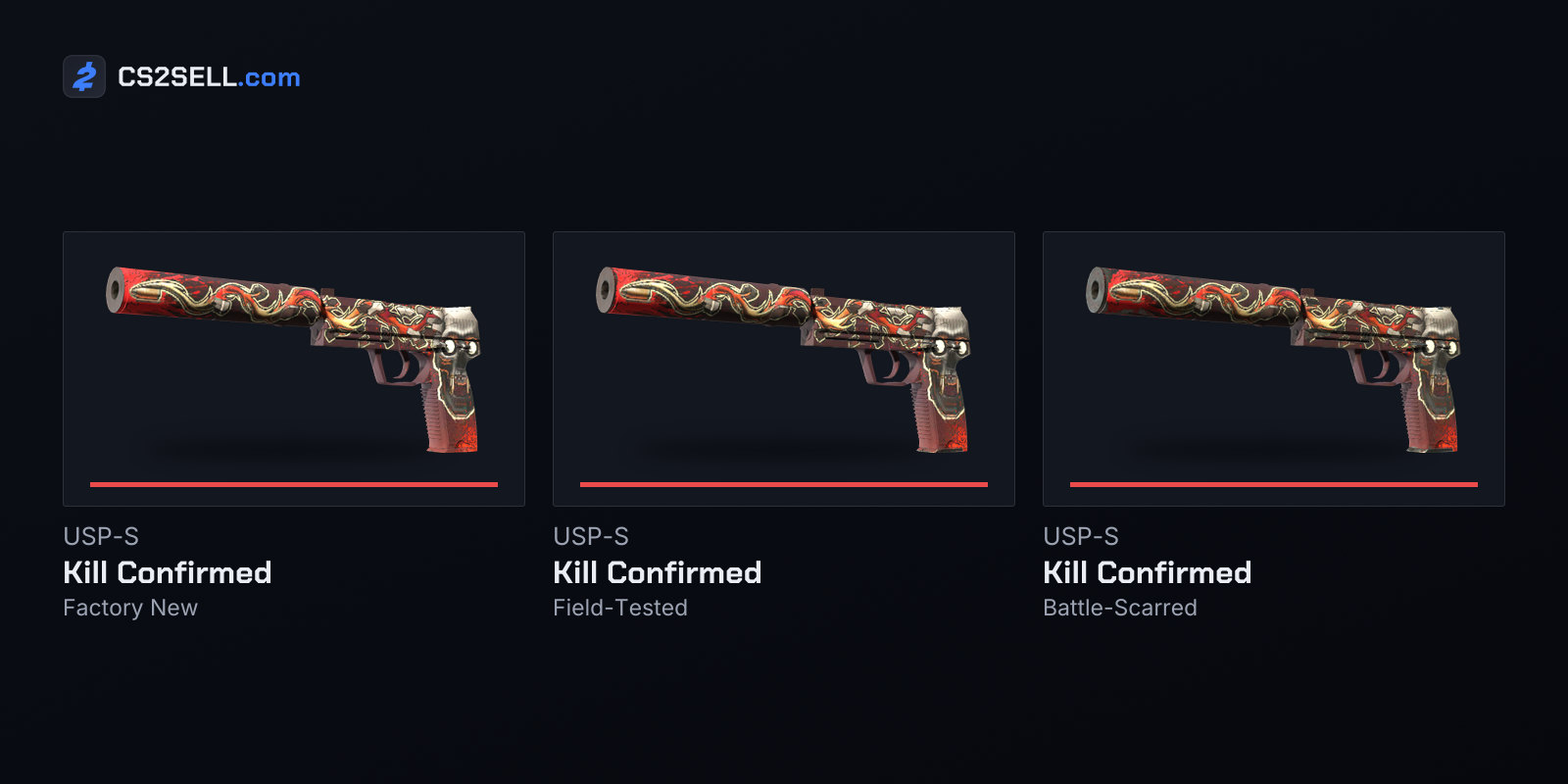
The tiers use these boundaries: Factory New 0.00–0.07, Minimal Wear 0.07–0.15, Field-Tested 0.15–0.37, Well-Worn 0.37–0.44 and Battle-Scarred 0.44–1.00. A float close to a boundary matters: a 0.071 Minimal Wear can look almost identical to a Factory New, and a 0.15 Field-Tested is far cleaner than a 0.36.
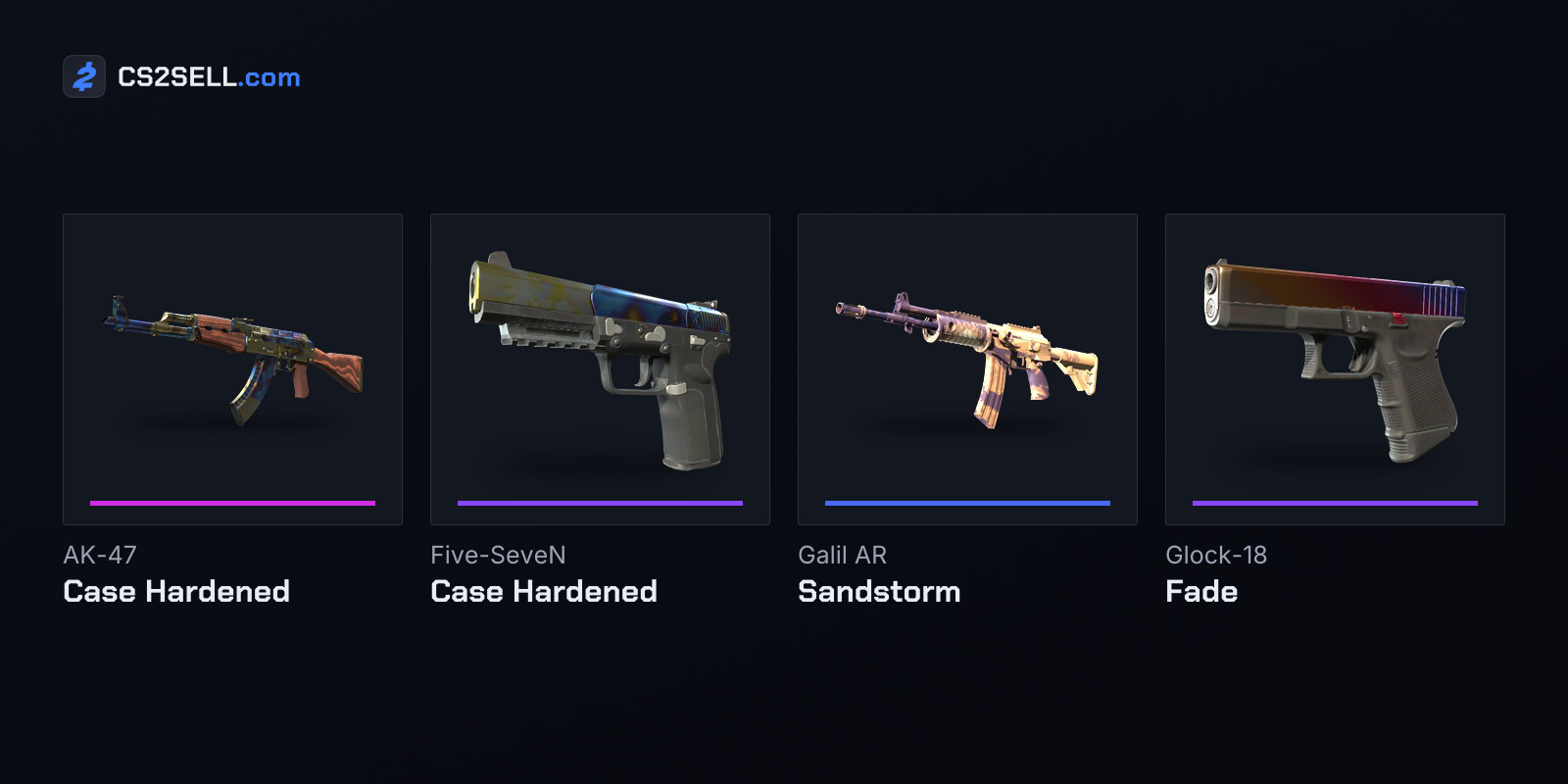
For most skins the pattern seed changes little. For pattern-based finishes such as Case Hardened, Fade or Galil AR | Sandstorm it can be the main thing you are paying for, so read the seed in the tooltip rather than trusting a title or a screenshot. The paint seed guide explains which skins it matters for.
CS2 inspect links changed in 2026
On March 4, 2026, Valve changed the Market so that listed items stay in the seller's inventory while listed; they can be equipped but not consumed or modified. Around the same time, developers who work with Steam noticed that inspect links had moved to a new format: a single long encoded string after csgo_econ_action_preview that carries the item's data, instead of the older version built from owner, listing and asset IDs. Guides that describe inspect links as S…A…D… or M…A…D… codes were written before this change.
For you as a buyer, two points matter:
- A genuine inspect link uses the
steam://protocol and opens CS2 directly. If a "link to inspect my skin" opens a website asking you to sign in to Steam, it is not an inspect link. The phishing guide shows what those fake pages look like. - An inspect link describes one specific item. When you buy, make sure the item you receive matches what you inspected: same float, same seed, same stickers.
What to check before buying
Run through these in the inspect screen:
- Float and tier. Compare the wear rating with what the listing claims, and look at the item, not just the number. Some finishes show wear early on the most visible parts.
- Pattern seed. For pattern-based skins, confirm the seed and look at the side of the gun you actually see in play.
- Stickers. Check which stickers are applied, their positions and how scraped they are. Since February 2024 stickers can sit anywhere on the weapon, up to five per gun, and since October 2024 scrapes can only increase. A sticker shown as clean in a screenshot may be scraped on the real item.
- Charm. If one is attached, check which charm it is and where it hangs. Charms can be detached and reused, so treat one as a separate item rather than part of the gun.
- Name tag and StatTrak. Confirm any name tag text and, for StatTrak items, the kill count.
- Lighting. Switch backgrounds, or take the weapon into a match, before deciding how a finish really looks.
After a trade, check one more thing in your Steam inventory: a yellow shield. Steam marks every CS2 item received in a trade as trade protected for seven days. During that time it cannot be traded on, modified or consumed, and the trade can still be reversed.
Narrowing down before you inspect
Inspecting every listing one by one is slow. A faster approach is to filter first and inspect only the shortlist. On Buy you can filter by float range, paint seed, stickers and charms, then open the few listings that match and confirm each one in game before you commit.